
Booking can be accessed by clicking on the left side menu bar > Rider Services > Booking.
On the Bookings page, your customer support team can help riders book a new ride or change their existing booking.
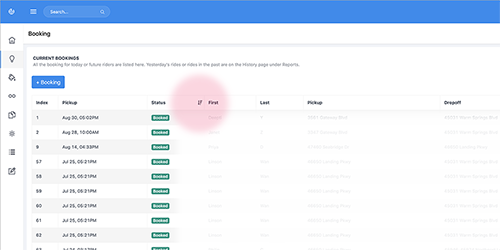
1. Review the current bookings to be served, or search for a specific booking.
On the bookings page, the table contains all the bookings for the current day (or today) and beyond. The bookings are display in the chronological order of their pickup time. You can sort the table by any column to identify a specific booking.
Note: all the bookings of the past days can be found in the History table under Reports.
2. Change an existing booking.
Currently the WebApp allows its user or admin to help riders change the pickup time and status of their existing bookings provided that the new time is a valid option.
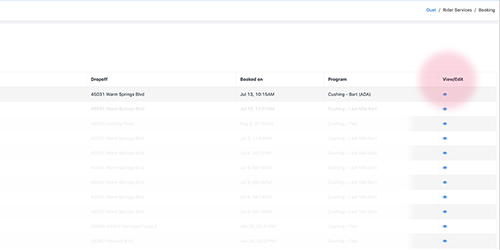
To edit the existing booking, identify the booking on the booking table and then click on the View/Edit icon for the booking.
In the Booking details window, review the information. If you need to cancel this booking, then click on the Cancel this booking button.
To edit the pickup time, click on the Change button. You will need to verify the rider’s phone number by asking the rider for the verification code that is sent to his/her phone number on file. Once the rider’s phone is verified, you will be able to edit the pickup time and then save it to update this booking.
3. Book a new ride for a customer.
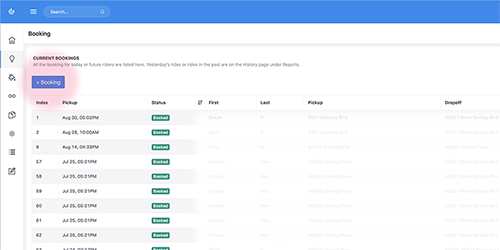
If you need to help a rider to book a new ride, click on the + Booking button. Follow the instruction on the screen to add the new rider to the system or identify the existing rider before helping them book a new ride.
Comments
0 comments
Please sign in to leave a comment.